



Losing important files can happen to anyone. You may accidentally delete a folder, format the wrong drive, empty the Recycle Bin, or discover that an external storage device is no longer showing your files.
When this happens, data recovery software can sometimes help you get those files back.
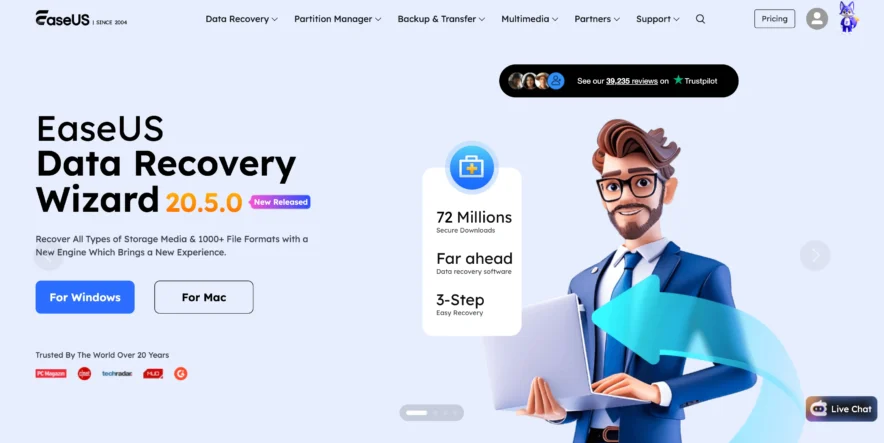
EaseUS Data Recovery Wizard is one of the better-known tools in this category.
It is designed to recover deleted or lost files from computers, hard drives, SSDs, USB drives, memory cards, and other storage devices.
But how useful is it in real situations? Is EaseUS easy enough for beginners? And is paying for the premium version worth it?
In this EaseUS review, I will explain its features, recovery process, pricing approach, advantages, disadvantages, and who should consider using it.
What Is EaseUS Data Recovery Wizard?
EaseUS Data Recovery Wizard is software designed to find and recover files that are no longer normally accessible on a storage device.
What Can EaseUS Recover?
The software can search for different types of lost files, including:
- Photos
- Videos
- Documents
- Audio files
- Emails
- Archives
- Other common file formats
It can be useful when files have been accidentally deleted, a partition has been lost, or a drive has been formatted.
Recovery is never guaranteed. If the original data has already been overwritten by new information, even good recovery software may not be able to restore it correctly.
Who Is EaseUS Designed For?
EaseUS is mainly designed for people who want a relatively simple recovery process without needing advanced technical knowledge.
You do not normally need to understand complicated recovery commands. The software guides you through selecting a location, scanning it, choosing files, and starting recovery.
This makes it suitable for home users, students, office workers, photographers, and small businesses dealing with common data-loss situations.
How Does EaseUS Data Recovery Wizard Work?
EaseUS scans a selected storage location to look for data that may still physically exist even though the operating system no longer displays it normally.
Step 1: Select the Storage Location
After opening EaseUS Data Recovery Wizard, you can choose the drive or location where your missing files were previously stored.
This might be:
- An internal drive
- External hard drive
- USB flash drive
- Memory card
- Specific partition
Select the correct location before starting the scan.
Step 2: Scan for Lost Files
EaseUS then scans the selected location.
The amount of time required depends on factors such as drive size, connection speed, drive condition, and how much data needs to be analyzed.
Larger drives can naturally take longer to scan.
Step 3: Filter the Results
A large scan can return many files. Instead of manually checking everything, EaseUS provides filtering and search tools.
You can narrow the results based on file type or other available information.
For example, if you accidentally deleted several JPG photographs, you can focus on image files instead of searching through documents, videos, archives, and other data.
Step 4: Preview Your Files
Previewing is an important feature because finding a filename does not necessarily mean the file can be successfully recovered.
Where supported, EaseUS allows you to preview certain files before recovery.
This gives you a better idea of whether the file you found is actually the one you need.
Step 5: Recover the Selected Files
Once you find the required files, select them and start the recovery process.
It is generally safer to save recovered files to a different storage location rather than writing them back to the same drive you are recovering from.
Writing new data to the affected drive can overwrite other recoverable information.
Main Features of EaseUS Data Recovery Wizard
EaseUS provides several recovery tools within one interface. Here are some of its most useful features.
Deleted File Recovery
Accidental deletion is one of the most common reasons people need recovery software.
EaseUS can scan a drive for deleted files that may still be recoverable.
Your chances are generally better when you stop using the affected storage device quickly. Continuing to download files, install programs, or copy data to the drive can overwrite deleted information.
Formatted Drive Recovery
Formatting a drive does not always mean every piece of data immediately disappears permanently.
EaseUS can scan formatted storage devices to search for recoverable files.
However, the success rate depends heavily on what happened after formatting and whether the old data has been overwritten.
Partition Recovery
Partitions can occasionally become lost, deleted, corrupted, or inaccessible.
EaseUS can search storage devices for files associated with lost partitions.
This can be particularly useful when the storage device itself is detected but your old files or partition structure is missing.
External Device Recovery
EaseUS is not limited to internal computer storage.
It can also work with supported external devices such as:
- External hard drives
- USB drives
- SD cards
- Memory cards
- Other supported storage media
This is useful for photographers and other users who frequently move files between portable storage devices.
File Preview
The preview function makes sorting through recovery results easier.
Instead of recovering hundreds of files just to find out whether they work, you may be able to preview supported formats first.
This can save both time and storage space.
File Filtering and Search
Scanning a large drive can produce thousands of results.
EaseUS provides search and filtering options that make it easier to locate specific data.
You can focus on relevant file categories instead of manually checking every recovered item.
EaseUS Data Recovery Wizard Pricing
EaseUS offers both free and paid options, although exact plans, prices, renewal terms, and recovery limits can change.
EaseUS Free Version
The free version is useful for testing the software and seeing whether EaseUS can detect the files you want.
This is important because you can evaluate the scan results before deciding whether you need a paid plan.
The free edition has recovery limitations, so it may not be enough for larger recovery jobs.
EaseUS Paid Plans
Paid versions generally provide higher or unlimited recovery capacity depending on the specific plan and platform.
EaseUS may offer different subscription periods and licensing options.
Before purchasing, check:
- Current recovery limits
- Subscription duration
- Automatic renewal terms
- Number of supported devices/computers
- Refund conditions
- Included technical support
This is especially important because software pricing and plan conditions can change over time.
EaseUS Free vs Paid Version
| Feature | EaseUS Free | EaseUS Paid |
|---|---|---|
| Drive scanning | Yes | Yes |
| Find deleted files | Yes | Yes |
| File preview | Available for supported files | Available for supported files |
| Recovery amount | Limited | Higher/unlimited depending on plan |
| Good for testing | Yes | Not necessary |
| Best for | Small recovery jobs | Larger recovery jobs |
For many people, starting with the free version makes sense. Run a scan and check whether the software can find the required files before considering an upgrade.
EaseUS Pros and Cons
Like any recovery program, EaseUS has advantages and limitations.
Pros of EaseUS
- Easy to use: The interface is suitable for beginners.
- Multiple recovery situations: It can help with deleted files, formatting, lost partitions, and other common problems.
- Supports different file types: Photos, videos, documents, audio, archives, and more can be scanned.
- External storage support: It can scan many USB drives, memory cards, and external drives.
- Preview option: Supported files can often be checked before recovery.
- Useful filters: Search and filtering tools make large scan results easier to manage.
- Free version available: You can test the software before purchasing a paid plan.
Cons of EaseUS
- Free recovery is limited: Large recovery jobs may require a paid version.
- Scanning can take time: Large or problematic drives may require lengthy scans.
- Recovery is not guaranteed: Overwritten or severely damaged files may not be recoverable.
- Paid plans can be expensive for one-time use: Someone recovering only a few files may not want a subscription.
- Results can contain many files: Large scans may require time to sort and verify.
Is EaseUS Easy to Use?
Ease of use is one of EaseUS Data Recovery Wizard’s main strengths.
Simple Interface for Beginners
The basic process is straightforward:
- Choose the drive.
- Start scanning.
- Find the required files.
- Preview them when possible.
- Select the files.
- Recover them to a safe location.
You do not need to know command-line tools or advanced storage concepts for a standard recovery attempt.
Recovery Results Can Still Be Complicated
Although the software itself is easy to operate, data recovery can become messy.
A scan may find files with changed names, missing folder structures, or incomplete information. This is not necessarily a problem with EaseUS. Deleted data itself may no longer contain all of its original file-system information.
Filters and previews become particularly useful in these situations.
Is EaseUS Data Recovery Safe?
EaseUS Data Recovery Wizard is intended to scan storage devices and recover accessible data rather than repair the original files directly.
Protect Your Original Drive
The biggest safety rule has less to do with the software and more to do with how you handle the affected storage device.
Once you realize important files have disappeared:
- Stop downloading files to that drive.
- Avoid installing software on the affected drive.
- Do not copy unnecessary data onto it.
- Avoid repeatedly modifying the drive.
- Recover files to another storage device when possible.
Every new write operation can potentially overwrite deleted information.
Physically Damaged Drives Need Extra Care
Software is not the right solution for every problem.
If a hard drive is making unusual clicking or grinding sounds, repeatedly disconnecting, or showing signs of physical damage, continuing to scan it may make the situation worse.
For highly valuable data on physically damaged hardware, a professional recovery laboratory may be safer.
Who Should Use EaseUS Data Recovery Wizard?
EaseUS is best suited to people dealing with common logical data-loss problems.
EaseUS May Be Good for You If:
- You accidentally deleted important files.
- You emptied the Recycle Bin before realizing you needed something.
- You formatted a storage device accidentally.
- Files disappeared from an SD card or USB drive.
- A partition is missing or inaccessible.
- You want a graphical recovery tool instead of command-line software.
- You want to scan first before deciding whether to pay.
EaseUS May Not Be Suitable If:
- Your drive has serious physical damage.
- The deleted data has already been overwritten.
- You need guaranteed recovery.
- Your storage device is no longer detected because of hardware failure.
No consumer recovery software can guarantee that every deleted file will be restored.
Tips to Improve Your Chances of Data Recovery
What you do immediately after losing a file can have a major effect on your recovery chances.
Stop Using the Drive
This is the most important step.
If a file is deleted, the storage space it occupied may eventually be reused. New files can overwrite that area.
Avoid Installing Recovery Software on the Same Drive
If possible, install EaseUS on another drive or computer.
Installing software on the affected drive creates new data, which could overwrite the files you are trying to recover.
Recover Files Somewhere Else
Do not save recovered files back to the same location during the initial recovery.
Use another internal drive, external drive, or other suitable storage device.
Preview Important Files First
When EaseUS supports previewing your file type, use it.
A preview can help you identify useful files before spending time recovering large amounts of unnecessary data.
EaseUS Review: Final Verdict
EaseUS Data Recovery Wizard is a practical option for people who want a straightforward way to search for deleted or lost files.
Its biggest advantage is simplicity. You can select a storage location, scan it, filter the results, preview supported files, and choose what you want to recover without needing advanced technical skills.
The free version also gives users a way to test the software before paying, although recovery limits mean larger jobs may require a paid plan.
The main thing to remember is that EaseUS cannot guarantee recovery.
No software can restore data that has already been completely overwritten, and physically damaged drives may require professional help.
For accidentally deleted files, formatted storage, missing partitions, SD cards, USB drives, and similar logical data-loss situations, EaseUS Data Recovery Wizard is worth considering.
Start with a scan, check whether your important files appear in the results, and only then decide whether upgrading makes sense.